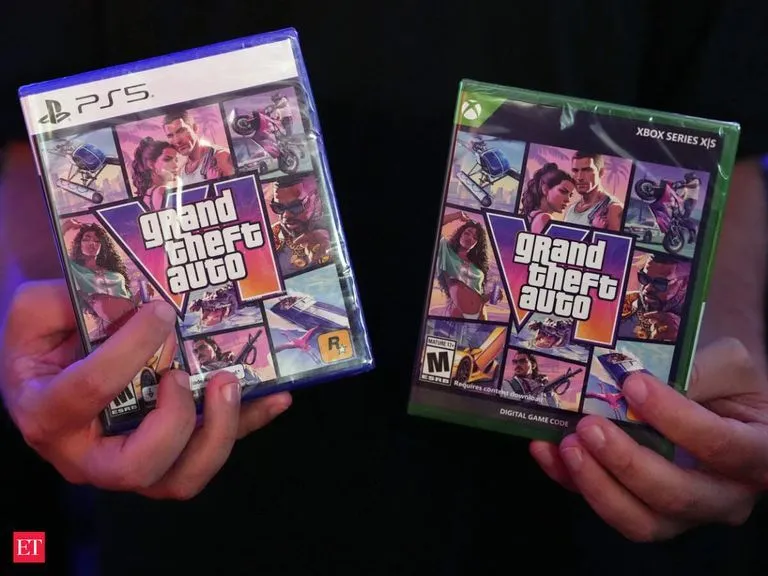

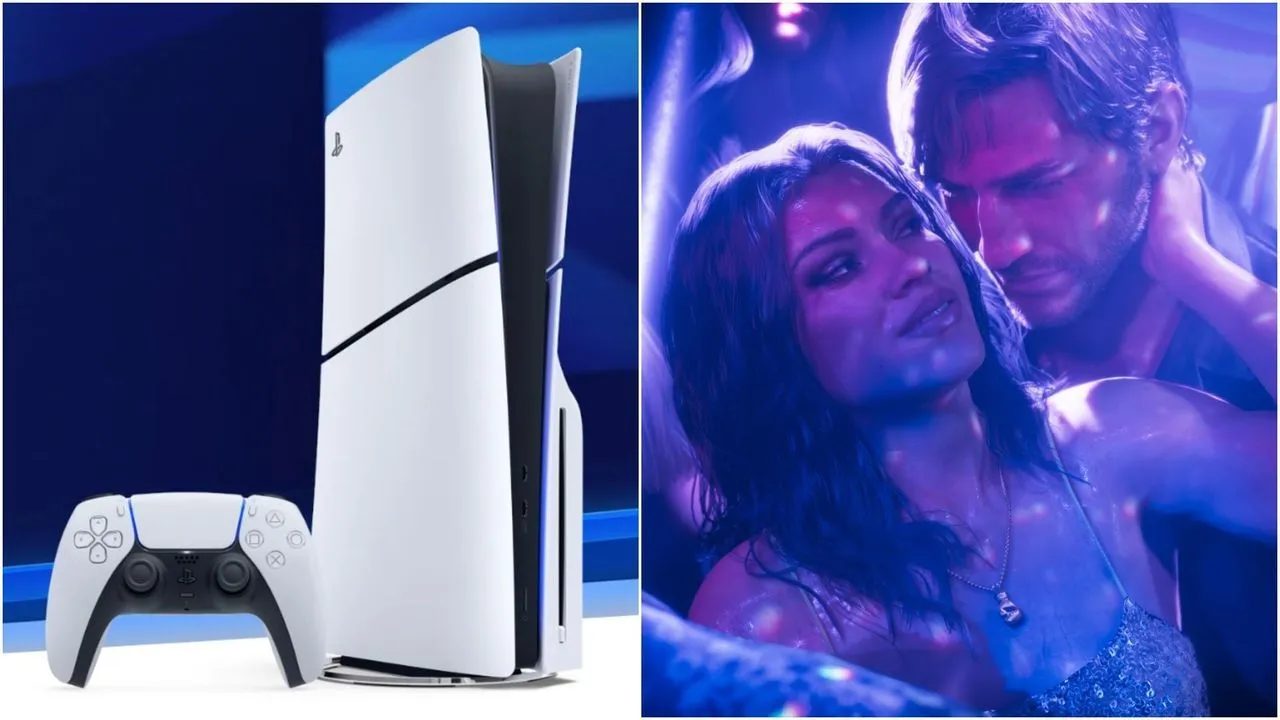
No, the graphics settings in GTA 6 on PS5 aren’t quite as extensive as on PC. There is no 60fps mode, and the game will run at 30fps on consoles (including PS5 Pro). However, there are still a few options to improve the visuals. You can change display settings, and there are a few sliders within the game. You can also tweak things on your console and TV.
Here is what can and cannot be changed with your graphics settings in GTA 6 on PS5.
Also read: How to play GTA 6 at 120 FPS?
Does GTA 6 have performance mode on PS5?
Unlike GTA 5 on PS5, GTA 6 has no fidelity or performance mode toggles. The PS5 itself has a Performance Mode that prioritizes smoother frame rates, but GTA 6 does not use it.
Rockstar Technology Production Director Marc Chambers explained to Kotaku that the game’s dense world simulation and AI systems are heavily CPU-bound. Even on the PS5 Pro, the CPU is only slightly upgraded over the base PS5, so it cannot run the simulation at higher frame rates.
Rather than a 60 FPS mode, the PS5 Pro uses its GPU and upscaling for visual upgrades, such as ray-traced shadows and PlayStation Spectral Super Resolution (PSSR), while still targeting 30 FPS.
What graphics settings you can adjust in GTA 6 on PS5
Even without graphics or frame-rate presets, a few display, effect and comfort options can be tweaked in-game:
Motion blur strength: An adjustable slider to balance blur against clarity.
Visual and effect intensity: Sliders for status effects, hit effects, awareness effects, and flashbang brightness and darkness, plus gore and dismemberment options.
Brightness and calibration: In-game brightness and display options to suit your room and screen.
Of course, some things stay locked. Depth of field, ray-traced lighting and reflections, and vignetting are not user-configurable graphics sliders.
Check out: Best HDR calibration for GTA 6 on PS5?
How to adjust GTA 6 graphics on PS5 with console and TV settings
Notably, you can still improve output and image clarity graphics settings outside the game:
Video Output (Settings > Screen and Video > Video Output): Set Resolution to Automatic, HDR to On When Supported, and VRR to Automatic. Enable Apply to Unsupported Games if your display supports it.
HDR calibration (Settings > Screen and Video > Video Output > Adjust HDR): Calibrate HDR for your display and room lighting.
TV Game Mode: Turn on Game Mode or ALLM on your TV for lower input lag.
For a detailed overview, you can check out our PS5 settings guide. All in all, the options are limited, but a few minutes of setup can make the 30 FPS picture of GTA 6 on PS5 look its best.
Check out more articles below:
When is GTA 6 coming to PC? Possibilities explored
GTA 6 PS5 vs. PS5 Pro performance analysis: Resolution, ray tracing, and frame rate scaling
All GTA 6 bugs and glitches we've found so far