
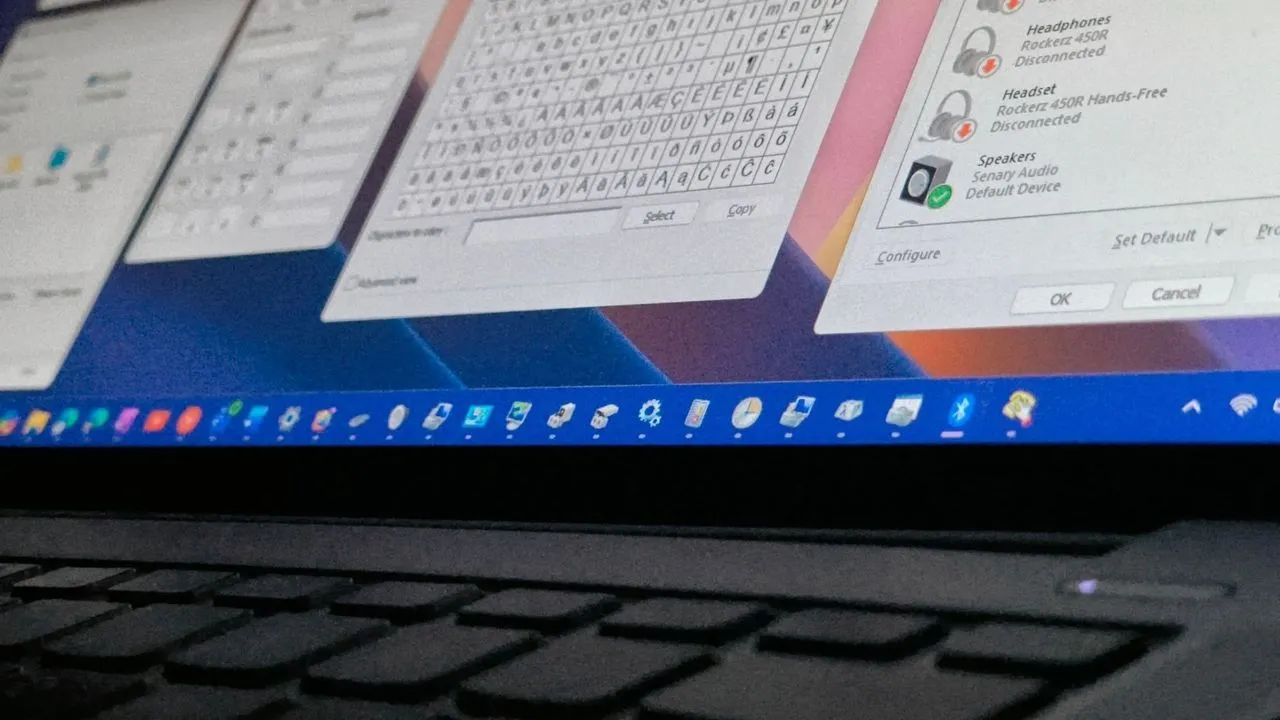
Microsoft’s design boss, Marcus Ash, has confirmed that his team is working on WinUI versions of Windows 11’s leftover Win32 dialogs and MMC consoles, in a reply under an X post about Sticky Keys. Microsoft has rebuilt a few of these this year, but five years after launch, Windows 11 still lets you open dozens of windows that look straight out of Windows 95 or Windows 8 (which is now 14 years old).
I’ve seen people on socials joke that Windows 11 is three operating systems in a trench coat, with WinUI, WebView2 and Win32. It’s obviously not three OSes, but open Device Manager next to the Settings app, click the Widgets icon, and you’ll get the joke.
I’ve spent a few hours checking every part of Windows 11 and put together a list of all the legacy dialogs and tools you can open today, how to open each one, and which ones Microsoft is already replacing.
Microsoft is “working on” WinUI versions of Windows 11’s legacy dialogs and MMC apps
Last week, Jen Gentleman, who works on the Windows engineering team, posted about a new option to permanently stop the Sticky Keys prompt. A user replied asking Microsoft to “winui-fy” the legacy Win32 dialogs and all of the MMC apps, and to port Control Panel to Settings completely. Well, that’s a tall ask, but, Marcus Ash, Microsoft’s CVP of Design and Research for Windows and Devices, replied, “Noted and working on that too.”
Understandably so, Ash didn’t share a timeline, but Microsoft has said this before. In March, Ash said the team is building tooling “to scale modernizing other dialogs,” and in May, Partner Director of Design March Rogers confirmed they are “working through our list of all older dialogs and rewriting them in WinUI 3.”
In July, Windows president Pavan Davuluri wrote that Microsoft has extended WinUI 3 “into more of the Windows shell,” naming the new Run experience, with AutoPlay and more File/Folder Properties dialogs coming to Insider builds. Rogers has also said dark mode on legacy dialogs was only a low-risk quick fix, and the plan is to “bring more of the Windows UI to WinUI3.”
Microsoft calls WinUI 3 its “recommended native UI framework“ for new desktop apps, and I’m glad to see this commitment towards WinUI. I uninstalled WhatsApp after it turned into a RAM-hungry WebView2 wrapper, so the last thing I want is a web-based Device Manager.
All ancient dialogs and tools you can still open in Windows 11, and how to find them
Most of these work fine, and a few are essential too. The .cpl commands open classic Control Panel applets, while the .msc ones are MMC consoles.
Defragment and Optimize Drives: used for defragmenting hard drives and trimming SSDs, which you can open by searching “defrag” or Win+R and typing dfrgui.
Mouse Properties: used for pointer schemes, double-click speed, etc. Type main.cpl in the Run dialog.
Sound: used for setting default devices, sample rate, etc. Type mmsys.cpl in Run.
Network Connections: used for adapter properties, IPv4 settings. Open Run and type ncpa.cpl (or just search Network Connections).
Power Options: used to select and change advanced power plan settings. I still use this on my test machines. Open Run and type powercfg.cpl
Programs and Features: used for uninstalling desktop programs, and I’m sure many of us have horrible memories about trying to delete unwanted programs using this. In Run, type appwiz.cpl
System Properties: used for environment variables, restore points, and more. Type sysdm.cpl in Run.
Folder Options: now this is something most of us use every single day to hide files, see file extensions, and a lot more. Go to File Explorer > See more > Options
Desktop icon settings: used to get This PC and Recycle Bin icons. Go to Settings > Personalization > Themes
Device Manager: one of the most useful and powerful tools in Windows, from where you can manage all drivers and hardware, and I always wonder why we still don’t have a WinUI version. Because managing devices from Settings is not as intuitive as this decades-old dialog. Type devmgmt.msc in Run.
Disk Management: I don’t use this these days, but I know a ton of people who do, and it helps with partitions, shrinking volumes, etc. Type diskmgmt.msc in Run.
Services: used to access background services, which are infamously high in Windows. Type services.msc in Run.
Event Viewer: I still use it to find error and crash logs. Type eventvwr.msc in Run.
Task Scheduler: still used for automated tasks. Type taskschd.msc in Run.
Computer Management: it shows several consoles in one window. Type compmgmt.msc in Run.
Local Group Policy Editor: I don’t need to explain the power of changing system policies via Local Group Policy Editor. It’s so powerful that you need Windows 11 Pro and above. Jokes aside, type gpedit.msc in Run.
Character Map: a funny dialog with Special characters. You can see it by typing charmap in Run.
Disk Cleanup: Until a couple of years ago, I used Disk Cleanup to delete leftover update files. Open Run and type cleanmgr.
ODBC Data Source Administrator: used for database connections for apps. Type odbcad32 in Run.
DirectX Diagnostic Tool: used for graphics and driver reports. Type dxdiag in Run.
Bluetooth File Transfer: can’t help but be nostalgic about the countless times I used this to send images and music. Type fsquirt in Run.
Format dialog: used for fully deleting USB drives. Still quite useful. Just right-click a drive and select Format.
There is a lot if you think about it. But the fact is that Windows has had these at a time when these were of utmost importance, and removing them sounds like a nightmare for power users, even today.
Sticky Keys got a checkbox in 2026, but kept its Windows 95 look
Press Shift five times, or hold Right Shift for eight seconds for Filter Keys, and you’ll get a prompt I trigger by accident almost every week. Builds 26340.9882 and 26320.9876 add a checkbox that says “Never turn on Sticky Keys with this shortcut,” and it worked when I tried it in my virtual machine.
Ironically, Microsoft updated a 31-year-old Win32 dialog to fix a 31-year-old annoyance, and kept it Win32, without dark mode. Ash didn’t say Sticky Keys is next, though.
Phone Dialer is still waiting for a modem your PC doesn’t have
If you want to see how people used to make calls decades ago, type dialer in the Run box, and Windows 11 opens Phone Dialer, a Windows 95-era app built to place voice calls through a modem, only to complain that it can’t find any telephone hardware.
Even Microsoft’s Brandon LeBlanc, who now works on Windows + Devices communications, said he doesn’t know why Windows has it at all, since it “was meant for a time where PCs had modems.” He added that he has passed it along.
Properties, Run, AutoPlay and Print Management are already moving to WinUI
Credit where it’s due, Microsoft has rebuilt some of the worst offenders. The File Explorer Properties dialog, built on Windows 95-era property sheets, has a WinUI 3 version with dark mode in testing, and Rogers says the file copy dialog is done too.
The modern Run dialog is written in C# and WinUI 3, and Microsoft measured a 94ms median time-to-show against 103ms for the legacy Run. Win + R opens the old one by default, and the new one is opt-in under Settings > System > Advanced in preview builds.
AutoPlay is getting its WinUI 3 redesign, and Print Management has a WinUI 3 app in testing that replaces its old MMC console. Next on the list are Reset this PC, which still uses Windows 8.1’s design.
Control Panel and MMC are the hardest parts for Microsoft to replace
MMC (Microsoft Management Console) is a framework that hosts “snap-ins” like Device Manager, Services and Event Viewer, and Microsoft’s documentation says MMC has no management features. So, turning MMC into WinUI would take the herculean task of rebuilding each console one at a time, but Print Management proves it can be done.
Control Panel is even trickier. Rogers said Microsoft is moving its controls into Settings carefully, because there are “a lot of different network and printer devices & drivers” that can’t break in the process. Until then, Settings keeps sending you back.
More sound settings opens the old Sound window, Additional mouse settings opens Mouse Properties, and Drive optimization under Settings > System > Storage > Advanced storage settings opens the defrag tool, which Rogers confirmed is on Microsoft’s list.
Personally, I’d prefer these controls inside Settings instead of 20 more standalone WinUI apps, but either beat what we have now. I also know that power users wouldn’t want any change, but Windows 11 needs to look like one OS!
After five years, Microsoft is finally fixing Windows 11’s oldest corners
Windows 11 had its 5th birthday and is flaunting a redesigned Start menu, Settings and Search, and we may also get some new default wallpapers for 27H2. However, Windows 95-era dialogs are just one Run command away. What’s different in 2026 is that Microsoft is actually rebuilding them in WinUI.
Ash’s five-word reply isn’t a roadmap, and I’m not keeping my hopes an inch above the ground for every MMC console to become a WinUI app next year. But after the rewrites we’ve seen this year, I’m sure Microsoft knows you can’t keep putting a modern roof on a house built with 30-year-old bricks.
Which ancient dialog do you run into the most?