
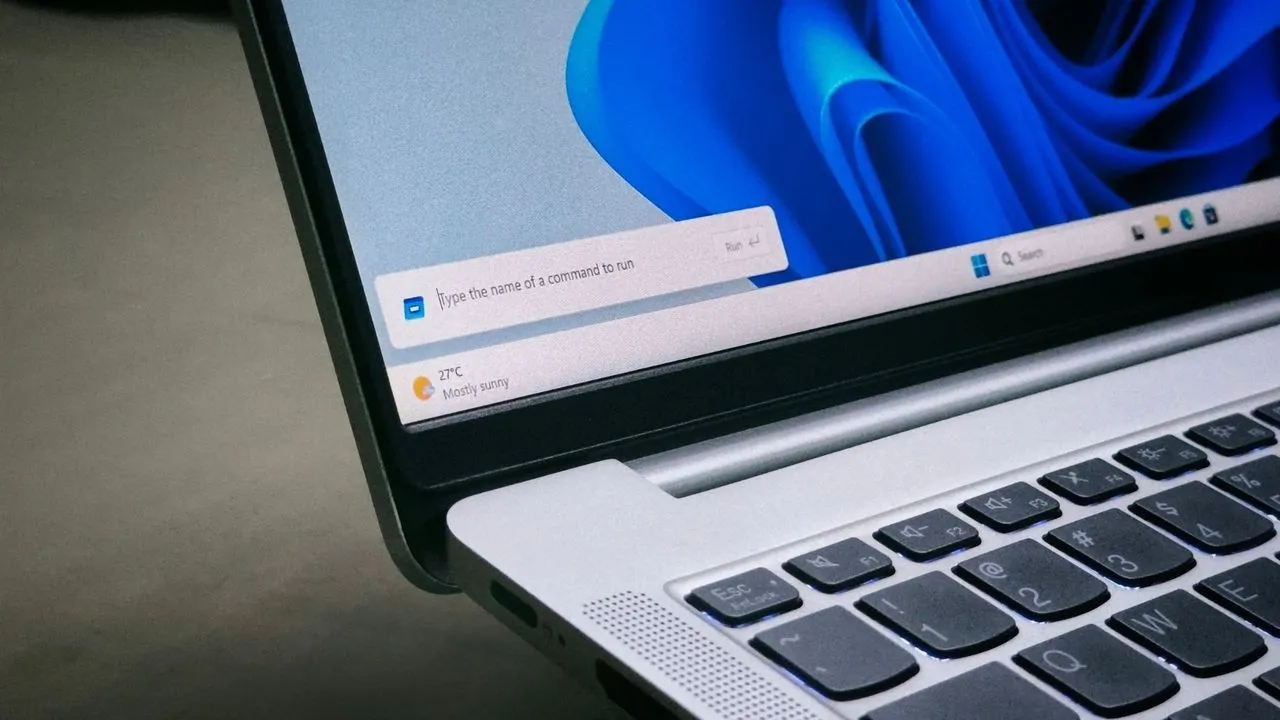
After months of testing, Microsoft has finally moved its new redesigned Run dialog, based on WinUI, to the Release Preview channel with Windows 11 builds 26200.10066 (25H2) and 26300.10066 (26H2). The update should reach regular PCs as an optional download later this month, followed by the mandatory December 8 Patch Tuesday update.
The company says the new Run opens in a median of 94ms, making it faster than the 103ms of the Windows 95-era legacy Run, and, of course, adds dark mode along with a home folder shortcut. We’ve been testing the new Run dialog since May, and I have been waiting for this to come to my regular PC. We finally have a timeline. Also, if you don’t like the faster, modern Run for some reason, Microsoft still lets you switch back.
Windows 11’s new Run dialog reaches Release Preview ahead of the December rollout
In the release notes for the November 13 builds, Microsoft says “The Run dialog has been updated with a more modern design and improved usability.” It’s unfortunately listed as a gradual rollout, so your PC may not get it as soon as you install the update.
For context, the modern Run first showed up as a hidden option in Windows 11 preview builds, and Microsoft made it an opt-in for Experimental channel Insiders in May with build 26300.8346.
Release Preview is the final stop before a feature reaches regular PCs. Typically, the Release Preview build becomes the optional non-security update in the fourth week of the month, and its features come to all PCs with the next Patch Tuesday. So, unless Microsoft pulls the plug at the last minute, which is rare at this stage, Windows 11 25H2 and 26H2 PCs should get the new Run in December.
Microsoft found only 0.0038% of users clicked Browse in the old Run dialog
Before rewriting Run, Microsoft’s Command Line team briefly measured how people used the old dialog. In a blog post about the new Run, Clint Rutkas, Principal Product Manager at Microsoft, noted that “0.0038% of users have clicked that button with a sample of 35 million.”
So, roughly 1,330 people ever clicked Browse. That’s a much smaller number than I thought.
If you’re not in among the above, Browse opens a file picker to find an app or file instead of typing its path. But Run is for people who already know what to type, so it’s no surprise that Browse collected dust for three decades, and Microsoft decided to drop it.
You can still type local and network paths, though, and the new ~\ shortcut jumps to your user folder, from where you can keep typing to go deeper.
Funnily enough, Microsoft also found people pasting text into Run and copying it again, without running anything, just to strip the formatting. I didn’t know that was a thing, because I’m the Ctrl+Shift+V guy.
The new Windows 11 Run dialog is faster than the old one, despite its modern design
Note that time-to-show only covers the wait between pressing Win+R and seeing the dialog. Opening an app after you hit Enter takes its own time.
A 9ms gain (about 8.7% less time) won’t change your life. But Microsoft swapped a native Win32 dialog for a WinUI one and made it quicker, which is the opposite of what happened with File Explorer in Windows 11, and it deserves some praise.
When Microsoft first shared the 94ms number, people on socials compared it with gaming monitors drawing a frame every few milliseconds. As we explained in our breakdown of the 94ms backlash, a game drawing its next frame is a far cry from a dialog starting cold, which means creating a process, loading the UI, and drawing the window. And the old dialog everyone defended is the slower one.
Under the hood, the new Run is written in C# with WinUI 3 and compiled with .NET Ahead-of-Time (AOT), so it ships as native code with nothing to compile when you press Win+R. It also shares code with the Command Palette in PowerToys.
In our side-by-side recording, the classic Run fades in over about five frames at 30fps, while the modern Run’s panel appears in a single frame, with its text field and Run button filling in a few frames later.
In case you’re wondering, the new Run does work in all taskbar positions, just like the old one, and I didn’t find any glitches.
How to enable the new Run dialog in Windows 11, and switch back to the old one
The modern Run is optional, and Microsoft hasn’t removed the classic dialog. Once your PC gets the update (either Release Preview, this month’s Optional, or December’s Patch Tuesday), here’s how to turn it on:
Open Settings > System > Advanced.
Under Taskbar, turn on Run dialog (“Use the modern Run dialog when pressing Win+R”).
Press Win+R to open the new Run dialog. Turn off the toggle if you like the legacy one more.
Microsoft’s release notes call the toggle New Run dialog, but it fortunately didn’t have any “New” tag in it when it showed up on our PC.
The new Run opens as a compact panel near the bottom-left corner, just above the taskbar. Your recent commands appear above the text field; the Up and Down arrow keys cycle through older ones. Unfortunately, removing this history is a bit finicky. You need to close Run, open it again, and press the Backspace key to clear it.
If you don’t see the toggle, your PC probably hasn’t received the feature yet, or your organization has disabled Advanced settings through a policy.
Microsoft is replacing more of Windows 11’s ancient dialogs with WinUI 3
Run is one of the legacy dialogs Microsoft wants to kill, alongside the File Explorer Properties dialog, AutoPlay and Print Management, which are all getting WinUI 3 versions. March Rogers, Partner Director of Design at Microsoft, says the team is “working through our list of all older dialogs and rewriting them in WinUI 3.”
Microsoft’s Reactor repository even has a native WinUI Registry Editor sample, though Microsoft hasn’t announced plans to ship it. And it will likely take time since it received a fair amount of negativity online, with users confusing it for a real WinUI regedit, even though we insisted multiple times in our post that it wasn’t.
Anyway, I’m all for the new WinUI Run, and since the classic Run stays for anyone with 30 years of muscle memory, there is nothing negative here. With the redesigned Windows Search also arriving in KB5132057, December would make Windows 11 more consistent.